












As digitalization evolves, technologies upgrade, and new versions pop up like Pokémon in the anime world.
But choosing between the latest version and the recently discarded one is not an easy job.
That is, you need to know about the specific features, unique capabilities, and added dynamism before making the decision.
Now, in the tech world, Windows 11 ISO is the new hot topic. With its simple design, fast and efficient model, and fresh features, it is winning the hearts of tech lovers.
But for the ones who have not yet tasted its dynamism, the question bugs— “How to download Windows 11 latest version?”
Well, look no further, I have got you covered. Here, in this article, you will find the perfect guide on downloading, installing, and troubleshooting common issues of Windows.
So, what’s the wait for? Come dive in!
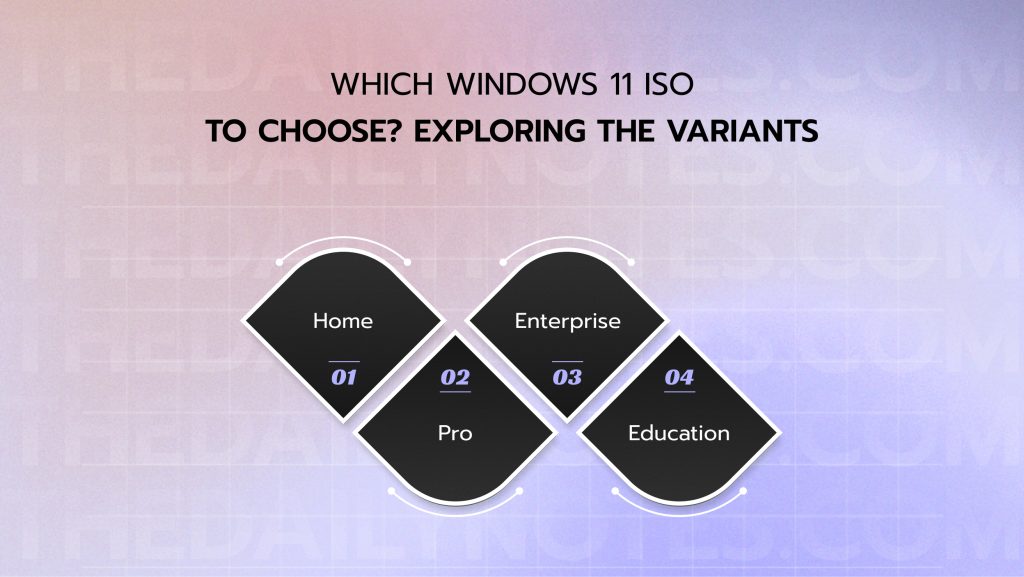
Which Windows 11 ISO To Choose? Exploring The Variants
Now, before jumping into the how-tos, let’s understand an ISO file. To explain in simple terms, an ISO file is a digital box containing all the core elements required to install an OS system.
That is, it is like a DVD that virtually stores the tools, .txt files, and other items that users need while installing Windows 11.
Now, downloading this ISO file from unofficial links or sites can practically expose your device to harmful malware and bugs. So, always choose the official Microsoft site.
Moreover, there are different versions of Windows 11, some of which include—
1. Home
Home is a standard version that works fine for most beginners and casual users. So, if users want to upgrade their home setups, they can choose this version.
2. Pro
Moreover, Pro is designed for professionals handling complex projects and software for work. So, it offers remote desktop, BitLocker encryption, and Hyper-V virtualization for professional use.
3. Enterprise
Additionally, the Enterprise model seamlessly handles large organizational systems.
That is, it comes with comprehensive features, advanced security, and IT management for organizational workflow management.
4. Education
Finally, the Education version is designed like the Enterprise to license institutions to use all Microsoft apps and Windows for academic purposes.
How To Download Windows 11 ISO? A Step-by-Step Guide
Now, Microsoft has made the download process for Windows simple and easy. So, here are the steps to download and install the package on a PC—
- Then, scroll down the home page to find the Download Windows 11 ISO.
- After that, scroll through the drop-down menu and choose Windows 11. Then, click on the Download option.
- Once the download completes, open the file and choose the preferred language, and click on Confirm.
- Finally, select the 64-bit Download version to install the Windows 11 ISO package on your device.
Can Windows 11 ISO Be Downloaded On Android? General Steps
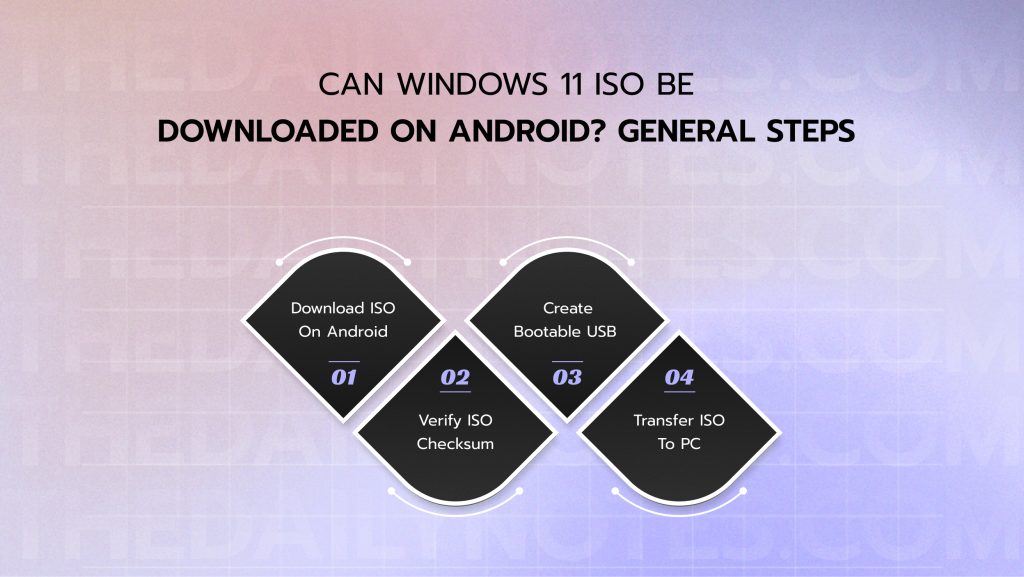
But if users want to download Windows 11 on their Android devices, they need to follow a workaround process. So, the steps of this installation include—
1. Download ISO On Android
Firstly, visit the official Microsoft website and download the Windows 11 ISO file following the steps above.
Then, select your local storage space and confirm the download.
2. Verify ISO Checksum
Now, to verify the ISO version, go to the Settings and generate the SHA256 hash value from PowerShell. Then, compare it with the official hash value of Microsoft.
But if this doesn’t work, you need to install a third-party app to store the checksum value and compare it separately. So, you can verify the authenticity of the downloaded version.
3. Create Bootable USB
In addition to this, you need to install a third-party app to create a bootable USB for your Android device. So, users can boot the media in their desired versions. Here are the steps—
- Install Ventoy or a similar tool from the Google Play Store.
- Then, connect the OTG with the USB drive attached to it.
- After that, open the app or Ventoy and select the USB as the target device for the transfer of files. Also, ensure the data is erased from the device once the transfer ends.
- Then, select the ISO file of Windows 11 and click on the Flash option.
- Finally, after the transfer is complete, you can take the USB to boot the OS in your desired devices.
4. Transfer ISO To PC
Now, take the USB and inject the transferred Windows 11 ISO file into your PC and follow the installation instructions.
Moreover, you will need to input the BIOS or the UEFI settings after installing the new OS version. So, the PC can boot without crashing the entire system.
Troubleshooting Common Issues With Windows 11 ISO Download
Even though the process of installing Windows 11 is quite easy, users can often face common issues. So, here are some troubleshooting methods to take you out of the dungeon—
- Doing compatibility checks for your device before installing the new version of Windows. This way, users can maintain the health of the device.
- Contacting the helpdesk to resolve post-installation issues. So, users can smoothly download and install the OS package with the right tips.
- Choosing legal and safe third-party tools for Android devices. This way, users can avoid encountering virus attacks and malicious bugs.
Now, with this simple and concise guide, anyone can get their hands on the new Windows 11 OS. So, what’s stopping you from upgrading to a sleek and fast OS?
Take this chance to enjoy the smooth and efficient system upgrade with the installation of Windows 11 ISO today!
FAQs
Here are some common questions around the installation of Windows 11 ISO that users often look for.
1. Is It Safe To Download Windows 11 ISO On My Android Phone?
Yes, absolutely. If you are downloading the Windows 11 ISO on your Android device from the official website of Microsoft, it is completely safe.
But if the site is not official, then you need to verify the checksum and use only reliable Android apps. So, the installation is safe from bugs and potential malware.
2. How Do I Verify The Windows 11 ISO Isn’t Tampered With?
Generally, users generate the SHA256 hash file of the Windows model using the PowerShell option. So, you can compare the file with the official hash value to verify its authenticity.
3. Which ISO Should I Choose: X64 Or Arm64?
Choosing between X64 and Arm64 depends on the type of your device. That is, if you have a regular PC with an Intel or AMD processor, X64 is the perfect fit.
But if you have a MacBook or a PC with a Surface Pro 9 processor, you need Arm64. That is, mainly devices with Arm-based processors need the Arm64 version.
4. How Do I Avoid Fake Windows 11 Download Sites?
The best way to avoid downloading a fake Windows 11 ISO is by installing it from the official Microsoft site. So, avoid any unofficial links or websites to download the version.
Moreover, users can go to their Settings and update the Windows model to the new version to avoid downloading a fake or wrong file.